Guide
How to add the Nearlet widgets to your iPhone Home Screen
Adding a Nearlet widget takes about a minute: touch and hold your Home Screen, tap Edit, then Add Widget, and choose Nearlet. The steps below cover the whole setup, from installing the app to showing your partner’s photos.
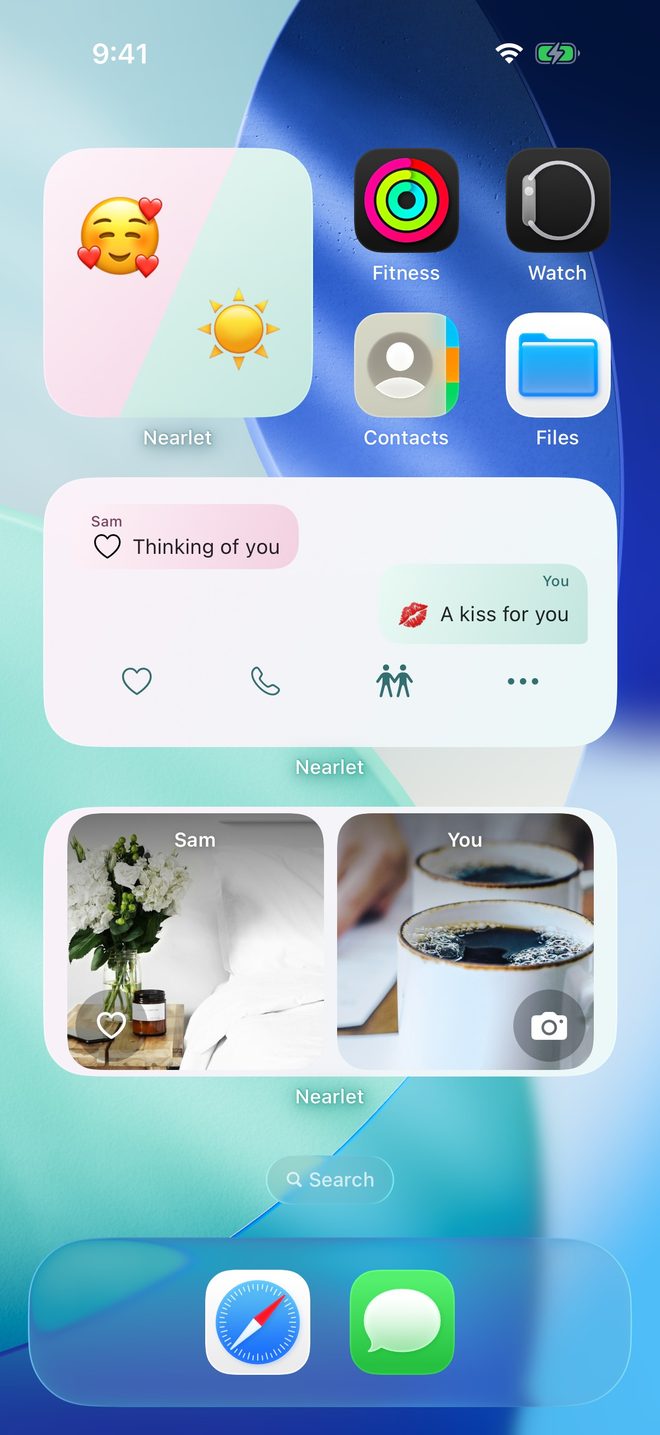
Step by step
- Install Nearlet from the App Store and sign in with Apple or Google. You need an iPhone with iOS 17 or later.
- Connect with your partner. In Nearlet, choose Connect with someone and send the invitation link. Your partner installs Nearlet and joins.
- Touch and hold an empty area of your Home Screen until the apps start to move.
- Tap Edit, then Add Widget.
- Find Nearlet in the list, pick a widget and a size, and tap Add Widget.
- Repeat for the other widgets you want. Photos for us, Signals and Your status are the three to start with. Add Routines or Collections for everyday things.
Show your partner’s photos
The Photos for us widget does not show your partner’s photos until you allow it. In Nearlet, open Settings, then Widgets, and switch on “Show partner photos on Home Screen”. It is off by default because anyone who sees your Home Screen can see those photos.
Change what a widget shows
Touch and hold a widget and choose Edit Widget. For the Collections widget you pick a list, and for the Memories timeline you pick a period and a space.
If something is not right
- Nearlet is not in the widget list. Open the app once, then try again.
- A widget is empty or out of date. Open Nearlet. Widgets show the last data the app saved, and iOS decides when they refresh in the background.
- The widget shows a prompt to sign in or connect. Sign in to Nearlet, and connect with your partner for the widgets that show two people.
Questions
Which iPhones are supported?
Any iPhone running iOS 17 or later.
Do widgets use a lot of battery?
No more than other Home Screen widgets. iOS limits how often any widget refreshes.